

Yes, you can export your TradingView backtest results. Open the Strategy Tester, click the Download icon, and you'll get a CSV of your trades or performance metrics. On Pro+ and Premium plans, you can also grab a full XLSX report with multiple sheets. Below, you'll find exactly which tab to use, how to fix broken imports, and what to do with the data once it's in Excel.
TL;DR:
- Exported trade data is available only on Pro+ and Premium plans, with full XLSX reports providing comprehensive analysis sheets for serious traders.
- The List of Trades CSV contains detailed trade-by-trade information, while the Performance Summary offers only aggregate KPIs, which are insufficient for in-depth analysis.
- Chart data exports include only visible price and indicator history, not trade records, requiring the full chart window to be loaded for complete data capture.
- Import errors often stem from encoding, delimiter, or date format mismatches, which can usually be fixed by adjusting import settings or viewing the raw CSV in a text editor.
- Post-export processing involves mapping columns, recalculating KPIs, normalizing returns, and leveraging risk sheets in XLSX reports for deeper insights into trading performance.
Table of Contents
- What Each TradingView Backtest Export Actually Contains
- How Do You Export TradingView Backtest Data Step by Step?
- Exporting Chart Data (OHLCV) Instead of Trade Records
- Fixing Common TradingView Export Import Errors
- What to Do With Your Data After Exporting
- How Scalping-Algo Turns Raw Exports Into Real Trade Reviews
- Quick Checklist I Run Before Every Export
- Get More Out of Every Export With Scalping-Algo
- Where to Verify Export Steps and Feature Availability
- Sources
- FAQ
What Each TradingView Backtest Export Actually Contains
Not every export gives you the same thing, and picking the wrong one wastes time before your analysis even starts.
- List of Trades CSV: trade-by-trade rows with entry/exit dates, prices, quantity, and profit/loss. Best for calculating your own KPIs or feeding data into a spreadsheet model.
- Performance Summary CSV: aggregate numbers like net profit, total trades, and drawdown as they appear on-screen. Good for a quick snapshot, not for rebuilding metrics from scratch.
- Full XLSX report: bundles Overview, Performance Summary, List of Trades, Trades Analysis, and Properties into one workbook, according to Quant Nomad's export guide. This is what most serious traders reach for since it saves you from stitching sheets together manually.
- Chart-data CSV: raw OHLCV price bars and indicator values, not trade records. Different export, different purpose.
If your goal is analyzing TradingView backtest results in Excel, the List of Trades or the XLSX version gives you the raw material. The Performance Summary alone won't cut it for anything beyond a glance.
How Do You Export TradingView Backtest Data Step by Step?
Here's the exact click path, no guesswork.
- Add your strategy to the chart, then open the Strategy Tester panel at the bottom of the screen.
- Pick your tab first. List of Trades gives per-trade rows; Performance Summary gives the rolled-up KPIs.
- Click the Download icon in the corner of the Strategy Tester panel to export whatever tab is active as CSV.
- For the full report, click the strategy name dropdown and look for Download data as XLSX if your plan includes it.
- Confirm the file landed in your downloads folder before closing the tab. TradingView's own support documentation on exporting strategy data confirms exports run per tab, not as one combined file.
Full XLSX export and CSV downloads are generally available on Pro+ and Premium plans. If you're on a lower tier, you're not completely stuck. You can manually copy visible rows from the Performance Summary, scroll through smaller trade counts and copy them by hand, or check if the strategy was published publicly, since some published strategy pages expose limited export options. It's worth checking your account tier's feature set before assuming you need to upgrade.
Exporting Chart Data (OHLCV) Instead of Trade Records
Chart-data export is a completely separate tool from the Strategy Tester export, and mixing the two up is a common mistake. You're pulling price history and indicator values, not trade-by-trade results.
- Open the chart toolbar and select the export/download chart data control.
- The file includes open, high, low, close, volume, and any indicator values currently plotted.
- TradingView only exports what's loaded on the chart. Scroll left or drag the x-axis to pull in older bars before you click export, or you'll get a partial history.
This matches how TradingView describes the feature in its chart data export documentation: the export captures the visible range, nothing more. Load your full window first.
Fixing Common TradingView Export Import Errors
Most "broken" CSV files aren't actually broken. They're just formatted differently than what your spreadsheet expects.
- Encoding issues: If special characters or symbols look garbled, re-save the file or import it specifically as UTF-8, with BOM enabled if your columns still shift.
- Delimiter mismatches: TradingView exports use commas, but if your regional settings default to semicolons, tell your import tool explicitly which delimiter to use.
- Decimal marks: Confirm whether your spreadsheet reads periods or commas as decimal points, especially if you're working across regional Excel settings.
- Date format and time zone: Check the timestamp format TradingView used, then align it to your analysis tool's expected time zone before running calculations.
- Partial exports: Scroll through the entire List of Trades in the panel before clicking Download, since the export only writes what's currently loaded.
These four issues cover the vast majority of failed imports, according to SG Group's CSV troubleshooting notes.
Pro Tip: Open the raw CSV in a plain text editor before importing it into Excel. If the columns look aligned there, the problem is almost always your import settings, not the export file itself.
What to Do With Your Data After Exporting
Getting the file is only half the job. Turning it into something you trust takes a few more steps.
- Map your columns. Line up date/time, symbol, entry price, exit price, quantity, and P&L to match your analysis template, whether that's a spreadsheet or a dedicated tool.
- Recalculate your KPIs. Don't lean on the on-screen Performance Summary. Rebuild net profit, expectancy, win rate, profit factor, max drawdown, and Sharpe or Sortino ratios directly from the trade-level rows.
- Prep for Monte Carlo or stress testing. Normalize returns to a consistent period, flag or remove any open trades still running, and lock in one position-sizing assumption across the whole dataset.
- Check the right XLSX sheets. If you exported the full report, the Properties and Trades Analysis sheets typically hold the risk ratios and settings you need for deeper testing without extra manual work, a shortcut Quant Nomad's guide points out saves real time.
One limitation worth knowing upfront: TradingView doesn't support batch or scheduled exports. Every strategy and symbol gets exported one at a time, manually. Budget for that if you're testing across multiple pairs or timeframes.
How Scalping-Algo Turns Raw Exports Into Real Trade Reviews
A CSV full of trade rows tells you what happened. It doesn't tell you why a setup worked, or whether it'll hold up next month.
- Scalping-Algo's open-source Pine Script v6 indicators let you line up exported trade timestamps against the exact signal that triggered them, so you can tag each row by setup type instead of treating every trade as identical.
- The Command Center dashboard pulls backtesting, alerts, and signal history into one place, which cuts down the manual cross-referencing that raw CSV files demand on their own.
- A repeatable review schema, tagging setup type, adding a chart-level note, and logging one takeaway per trade, turns a flat export into something you can actually learn from over time.
That structure matters more than the export format itself. A perfectly clean XLSX file with no review layer still won't tell you which setups to trust.
Quick Checklist I Run Before Every Export
Before I download anything, I confirm the timeframe, symbol, and test period are right, and that the List of Trades is fully scrolled and loaded. I lock in commission and slippage assumptions in the Strategy Tester, then decide which tab to export and save both the raw file and a cleaned copy.
— Tran
Get More Out of Every Export With Scalping-Algo
Reading a spreadsheet full of trade rows only gets you so far without a way to connect them back to the signals that generated them. Scalping-Algo's suite closes that gap: its non-repainting indicators, built specifically for the 1 to 15 minute timeframes most scalpers export data from, let you cross-check exported trades against real signal history instead of guessing which setup produced which result.
Start with Smart Scalping Signals if you want confluence-based entries to test against your exports, or check out Edge Finder for spotting repeatable setups worth tagging in your review sheet. The Momentum Oscillator rounds out the confirmation layer for traders refining entries on lower timeframes. Plans are available through the Scalping-Algo landing page, where you'll also find the Command Center dashboard and backtesting tools ready to pair with whatever you just exported.
Where to Verify Export Steps and Feature Availability
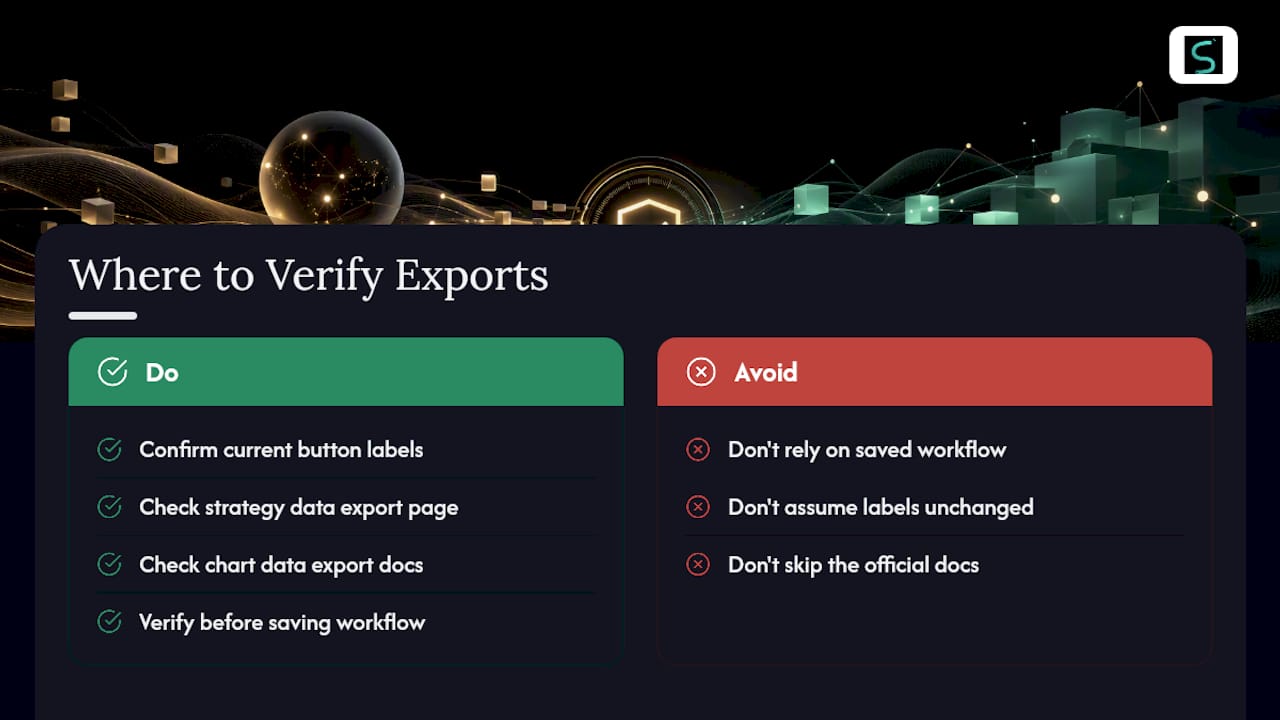
TradingView updates its Strategy Tester interface periodically, so confirm current button labels against the official strategy data export support page and the chart data export documentation before you rely on a saved workflow.
Sources
- How to export strategy data — TradingView
- How to Export TradingView Backtesting Data From a Pro Account - Quant Nomad
FAQ
Is It Possible to Export Data From TradingView?
Yes. You can export Strategy Tester results as CSV files through the Download button, and often as a full XLSX report if your plan supports it. Chart data, meaning price and indicator history, exports separately through the chart toolbar.
Can I Backtest in TradingView for Free?
TradingView's free plan lets you run the Strategy Tester and view results on-screen, but export access is typically tied to Pro+ or Premium plans. If you're on a lower tier, manual copying of visible summary data is your main workaround until you upgrade.
Can ChatGPT Backtest a Trading Strategy?
ChatGPT can help you write or troubleshoot Pine Script code for a strategy, but it can't run a live backtest inside TradingView itself. You still need the Strategy Tester to generate real results, which you can then export and analyze separately.
How Do You Create a Backtest on TradingView?
Add a strategy script to your chart, open the Strategy Tester panel, and TradingView runs the backtest automatically against your chart's historical data. From there, you pick List of Trades or Performance Summary and use the Download control to export whichever tab you need.
Why Does My TradingView CSV Export Look Broken in Excel?
The most common causes are encoding mismatches, wrong delimiters, or date formats that don't match your spreadsheet's regional settings. Re-import the file specifying UTF-8 encoding and comma delimiters, and double-check the date and time zone formatting before you trust the numbers.